
Studio Mate
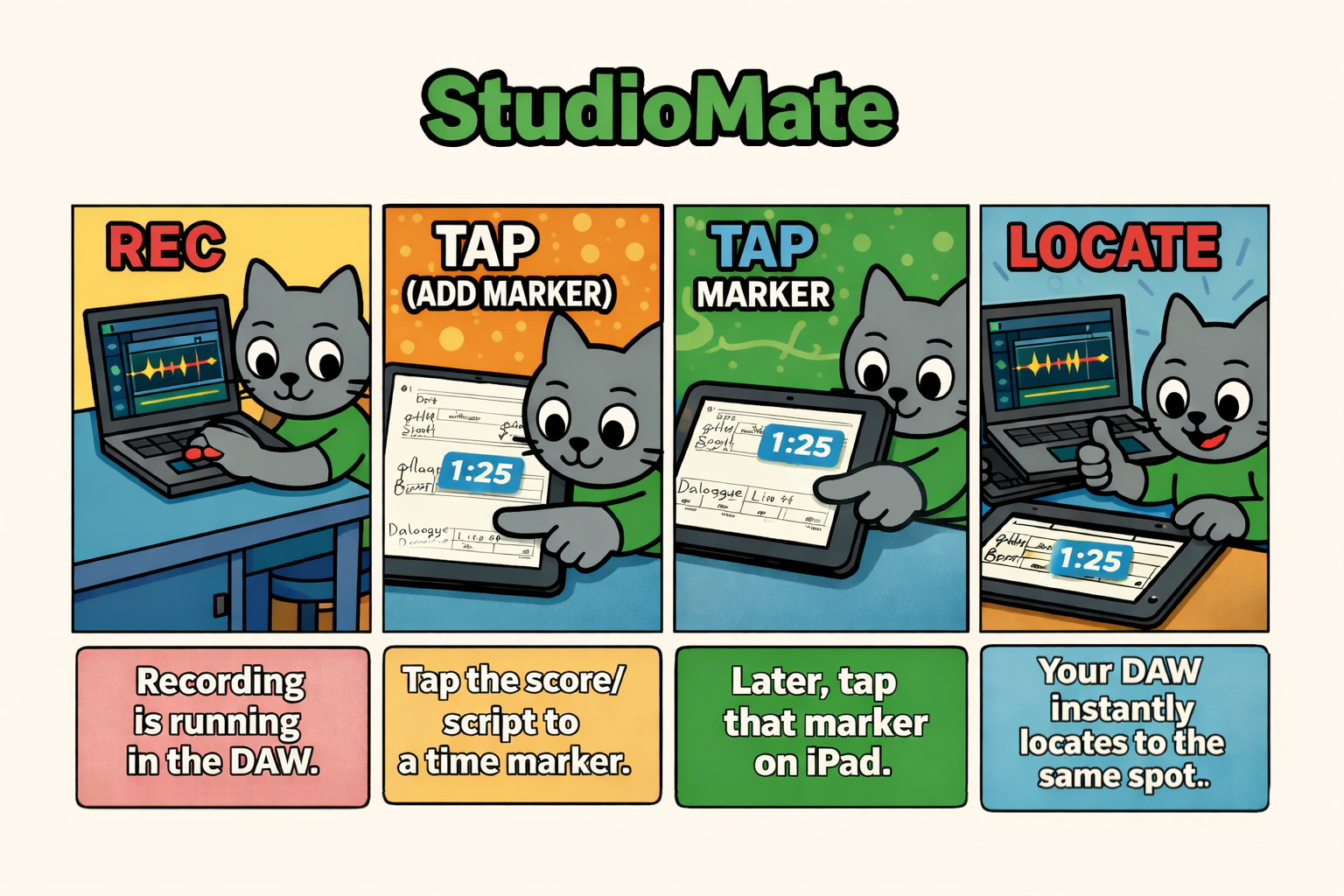
Add timecode markers directly into your PDF, then tap a marker to locate your DAW.
iPad + DAW via MIDI (MTC/MMC).
How it works (quick overview)
Before you start
Please set up a MIDI connection between your DAW and this app.
USB connection (macOS Audio MIDI Setup)
- On your Mac, open Audio MIDI Setup.
- Connect your iPad to your Mac via USB.
- From the Window menu, choose Show MIDI Studio.
- When your iPad appears, enable Audio and MIDI for the device.
Network connection
- Make sure your Mac (running the DAW) and iPad are on the same network.
- On your Mac, open Audio MIDI Setup.
- From the Window menu, choose Show MIDI Studio.
- Double-click Network to open MIDI Network Setup.
- If there’s no Session, create one. Then select your iPad and click Connect.
DAW settings
- Set MTC Generate Port to the iPad.
- Set MIDI Machine Control Remote to its default value.
- Turn MTC Generate ON.
Note: wireless MIDI can work, but USB tends to be more stable if your iPad sleeps.
How to use
- Draw with Pen on the PDF.
- Tap to add a timecode marker.
- Double-tap a timecode marker to edit.
- Long-press a timecode marker to move it.
- When the DAW is stopped, tap a marker to locate your DAW to that position.
Interface shortcuts
Bookmarks
Tap the bookmark icon to open the bookmark list for the current PDF.
Document switcher
Tap the PDF title in the toolbar to open the list of recently opened documents.
Pen & label tools
- Long-press the tag icon to toggle Finger / Pencil mode.
- Double-tap any pen or label icon to open its settings menu.
Editing swatches
- Double-tap any pen or label icon to open its settings menu.
- Tap Edit to enter swatch edit mode.
- Use the color picker to create the color you want.
- Long-press the swatch you want to replace to save the new color.
- Tap Reset to restore the default swatch set when needed.
FAQ
Nothing happens when I tap a marker.
Make sure your MIDI connection is active and your DAW is configured for MTC/MMC as described above. Also confirm your DAW is stopped when tapping a marker (locate is intended for stopped state).
Network MIDI disconnects sometimes.
Try USB if possible. If you prefer network MIDI, keep the iPad awake and avoid switching Wi‑Fi networks.
How do I send feedback or report a bug?
Email kjdevapphelp@gmail.com and include: app version, iPadOS version, and steps to reproduce.